Topic · 8 of 25 questions freeTopic 3: Management and Troubleshooting
Question 141Choose 1
Which command must be run to generate troubleshooting files on an FTD?
Correct answer:
C. system generate-troubleshoot all
Explanation
According to Cisco's official documentation, to generate a troubleshooting file on a Firepower Threat Defense (FTD) device through the CLI, use the command system generate-troubleshoot all. This command runs in the FTD CLI and produces a troubleshooting file containing logs, configuration data, and command output for analysis by Cisco Technical Assistance Center (TAC).
The command syntax is system generate-troubleshoot option1 optionN, where options can include ALL, SNT, PER, SYS, NET, and others. Specifying all collects all available troubleshooting data. After execution, the file is saved to a location such as /ngfw/var/common/results-xxxxx.tar.gz or /var/common/xxxxxx.tar.gz, depending on the platform and software version.
Why the Other Options Are Incorrect
A. system support view-files: This is not the documented FTD CLI command for generating troubleshooting files.
B. sudo sf_troubleshoot.pl: This command is used on the Firepower Management Center (FMC), not on the FTD device itself. Cisco documentation distinguishes the FMC command sudo sf_troubleshoot.pl from the FTD command system generate-troubleshoot all.
D. show tech-support: This command is associated with diagnostic collection in environments such as FXOS, the chassis operating system on platforms like Firepower 4100/9300. It is not the standard FTD CLI command for generating the troubleshooting archive described in the question.
Reference
Cisco Firepower Threat Defense Command Reference: system generate-troubleshoot is documented as the command to generate troubleshooting data for analysis by Cisco Technical Support, with ALL as an option to run all available data collection types.
Question 142
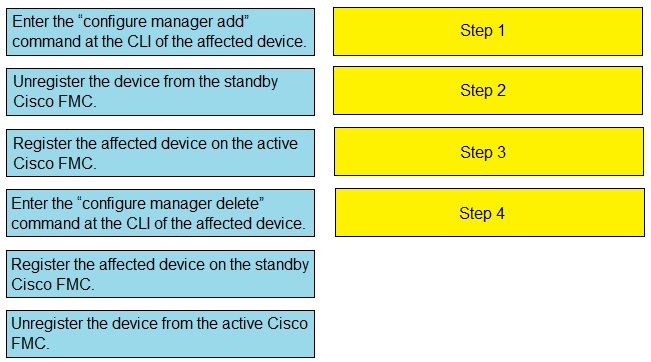
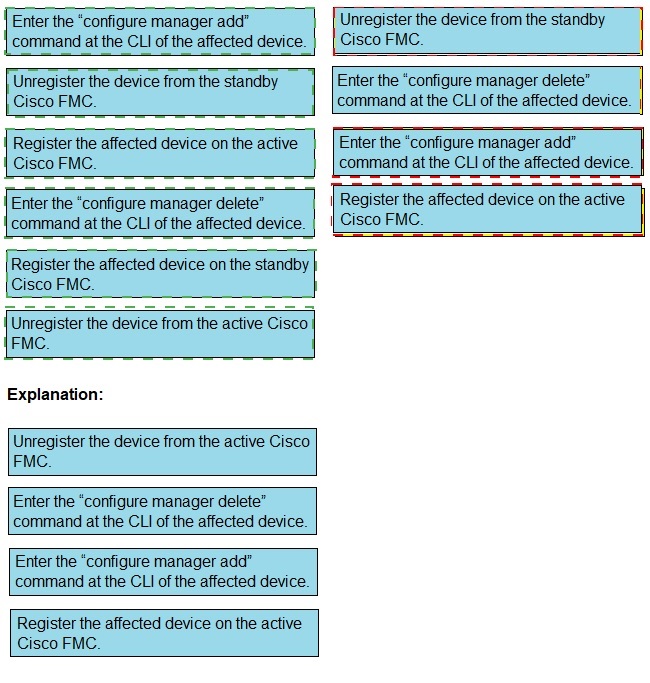
Drag and drop the steps to restore an automatic device registration failure on the standby Cisco FMC from the left into the correct order on the right. Not all options are used.
Explanation
According to Cisco's official configuration guide, when automatic device registration on the standby FMC fails but the device appears to be registered on the active FMC, the issue can be resolved by re-establishing the management connection through the active FMC.
The procedure is to first unregister the device from the active FMC. Next, log in to the affected device's CLI and execute configure manager delete to clear the existing manager configuration. Then execute configure manager add to configure the device to communicate with the active FMC. Finally, return to the active FMC and register the device again. Once registration succeeds on the active FMC, the device registration information should synchronize automatically with the standby FMC through the HA mechanism.
Why the Other Options Are Incorrect
Unregister the device from the standby Cisco FMC and register it on the standby Cisco FMC: The active FMC manages device registration, and the registration information is synchronized with the standby FMC. Manually registering the device on the standby FMC is not the documented recovery procedure and may cause registration inconsistencies.
Unregister the device from the active Cisco FMC and register it again without changing the device CLI configuration: Unregistering and re-registering alone may not resolve the issue if the existing manager configuration is causing the failure. The documented procedure includes configure manager delete and configure manager add before registering the device again on the active FMC.
Reference
Cisco Firepower Management Center Configuration Guide — Using CLI to Resolve Device Registration in Firepower Management Center High Availability. The procedure describes unregistering the device from the active FMC, executing configure manager delete and configure manager add on the device CLI, and then registering the device again on the active FMC. Device registration information is synchronized with the standby FMC through the HA mechanism.
Topic · 2 of 8 questions freeTopic 4: Integration
Question 143Choose 2
Which two features of Cisco AMP for Endpoints allow for an uploaded file to be blocked?
(Choose two.)
Correct answer:
A. application blocking
B. simple custom detection
Explanation
In Cisco AMP for Endpoints, blocking a specific uploaded file can be achieved through different mechanisms depending on the intended outcome.
B. Simple Custom Detection allows administrators to create a list of specific files identified by their SHA-256 hashes. When the file hash is added to the list and the appropriate policy is applied, the AMP connector can detect and block the file according to the configured policy. This is a direct method for blocking a known malicious file on an endpoint.
A. Application Blocking is a feature under Outbreak Control in AMP for Endpoints. It allows administrators to prevent specified applications or executables from running based on the configured policy. If the uploaded file is an executable, application blocking can prevent it from executing on the endpoint.
Why the Other Options Are Incorrect
C. File repository: The file repository is used to store and manage files for analysis or archival purposes. It is not the primary feature for actively blocking files on endpoints.
D. Exclusions: Exclusions tell AMP to ignore specified files, paths, or other items for applicable detection purposes. They are not intended to block files.
E. Application whitelisting: Whitelisting, or Allowed Applications, is designed to permit approved applications. Although it may prevent unapproved applications from running when configured accordingly, it is an allow-list approach rather than the direct block-list method used to target a specific file hash.
Reference
Cisco documentation: "Configure a Simple Custom Detection List on the AMP for Endpoints Portal" — describes using SHA-256 hash lists to detect and block specific files according to the applicable policy.
Question 144Choose 1
What is a valid Cisco AMP file disposition?
Correct answer:
B. malware
b>Explanation
Cisco AMP for Endpoints uses file dispositions to categorize files based on their SHA-256 hashes and available threat intelligence. These dispositions help the AMP connector determine how to handle files according to their classification and the configured policy.
Common file dispositions include Malware (confirmed malicious), Clean (verified safe), Unknown (not yet classified), and Unverified (not fully analyzed). Other statuses, such as Custom Detection and Quarantined, describe files that match custom detection criteria or have been isolated by the system.
Therefore, Malware is the valid file disposition among the given choices.
Why the Other Options Are Incorrect
A. Non-malicious: This is not the standard disposition name used to identify a safe file in AMP. The corresponding disposition is Clean.
C. Known-good: This is a general industry term for a trusted file, but the standard AMP disposition is Clean.
D. Pristine: This term may be used in other threat intelligence contexts, but it is not the standard file disposition expected in this question.
Reference
Cisco AMP for Endpoints User Guide — see the section on file dispositions and malicious file handling for the terminology used to classify files.
Topic · 1 of 1 questions freeTopic 5: NEW Questions
Question 145Choose 1
While configuring FTD, a network engineer wants to ensure that traffic passing through the appliance does not require routing or Vlan rewriting. Which interface mode should the engineer implement to accomplish this task?
Correct answer:
B.
transparent
That's the last free question
You've seen the free 35% of every topic (145 of 420 questions). Get complete access for every question, explanation and the timed mock exam.